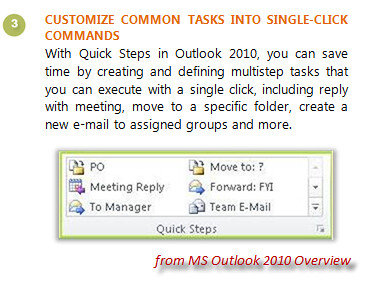
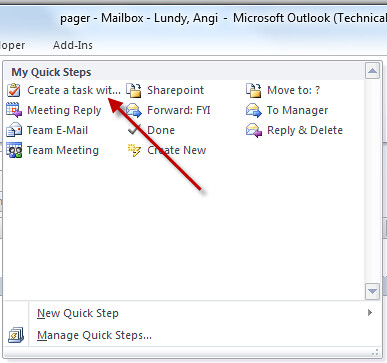
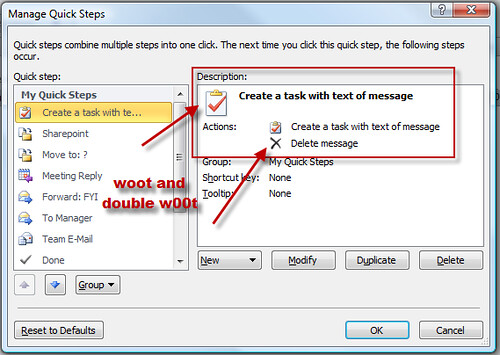
Outlook 2010 almost (*allll*most) makes me want to be an AA again
*Be an AA (Administrative Assistant), not be in AA (Alcoholics Anonymous) ... not that there is anything wrong with AA, but it doesn't have anything to do with Outlook 2010... at least not that I have noticed yet.*
So yah, for ya'll who actually know me in real life you are undoubtedly well informed of my pull herself from her bootstraps, coming of age, me against the world career climb. The one that started in the mean streets of Administrative Assistant-dom and eventually (with the help of a friend called SharePoint and -admittedly- an extremely tolerant boss / IT Director) ended me in the illustrious roll of SA (SharePoint Administrator - soon to be real live Systems Administrator). That was dramatic, I realize, but if you could crack open my brain and take a look inside (and brains were more like treasure chests of thoughts, feeling, and memories and less like bowls of gooey spaghetti) it is that story you would see - so deal! eek - blog ADD strikes again.
The whole point of that was to let ya'll know that scheduling meetings used to be my life ... it isn't now (thank goodness), but calendaring efficiency is still extremely close to my heart.
This post focuses a bit on the scheduling goodies offered by Outlook 2010. Okay, MS marketing blurb excerpt first.
Lucky for me we do utilize Exchange Server @ my company, however, it's Exchange 2003 so we're missing out on a few of the options ... but I won't complain too much (at least not in this post) because the features that are available make me happy enough that complaining isn't necessary (yet.)
Look and Feel meh ... it's grey ... I'm sure I can change the color scheme - but who cares. What is intriguing is the ribbon (I know there are a lot of people who had a heart attack when the ribbon showed up in Office 2007 - but I liked it, always have, and I'm glad it's permeated all the 2010 product). One thing I've noticed is that I believe the ribbon is now more intuitive, I'll focus on that more in my Word and PowerPoint posts, but so far I'm not doing nearly as much hunt-and-pecking as I did when I started using Office 2007. And don't say it's because I'm so used to the ribbon with Office07, because it's changed, dangit.
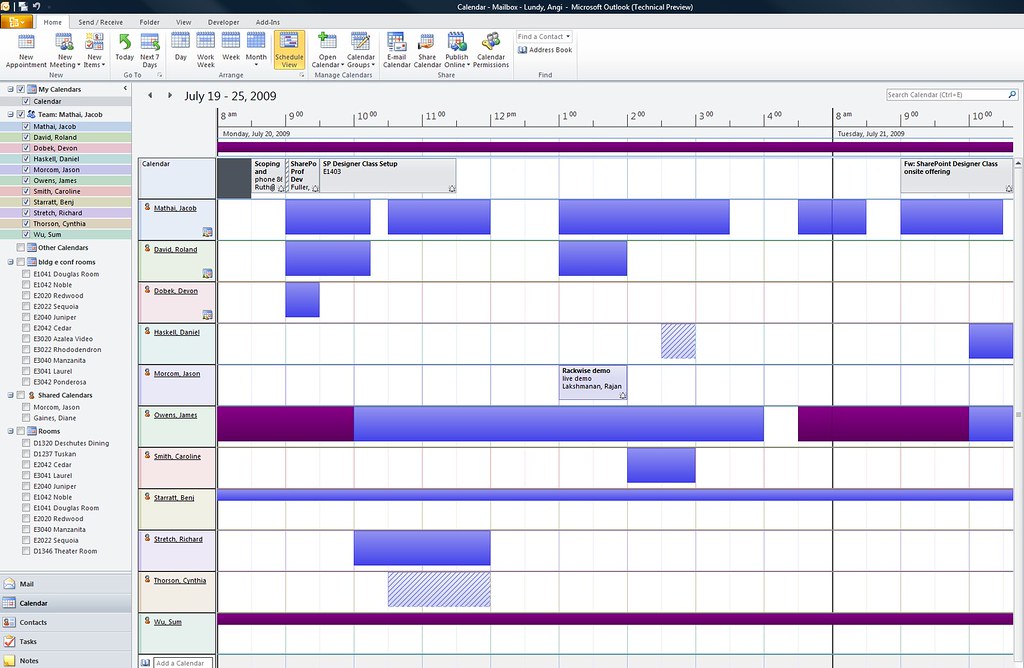
Now the first thing I noticed about calendaring in 2010 is that some of the calendar groups I had created previously (that vanished a few months back in that special magical way things seem to vanish in Outlook from time to time) are now back. For serious, the calendar groups and all the calendars I put in them appeared for me. In addition, there is now a heading for my Team (all the peeps exchange knows report up to my bossman), and a heading for "Shared Calendars" (the couple of peeps who have explicitly given me view permissions to their calendars). See screenshot to get an idea of what I'm working with.

So all that is nice, we already know how much I like it when Outlook gets smart and does stuff for me... but check out what happens when I actually select one of the groupings. For fun, I'll select the group created for my team ... why you ask? Well, because there is only one person on that listing who actually shares his calendar with me, the rest I don't even have read access to. In past versions of Outlook, if I tried to open one of their calendars I would get a nasty pop-up saying I don't have access or the calendar can't be found or some such, and do I want to let them know I am engaging in professional stalkering by sending them a sharing request. Truth being, I don't care what the actual appointments say, I just want to know if they are busy or out of the office - without having to add them to a meeting request and then hit the scheduling tab. *deep breath*
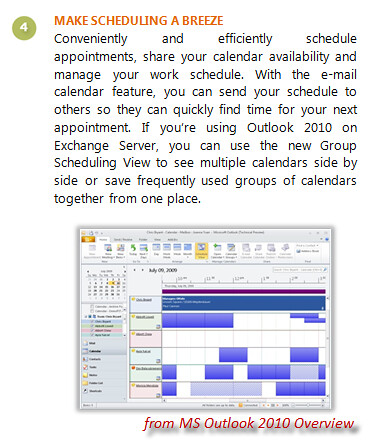
So check the screen shot, it took about 10 seconds to populate this view and you can see clearly who is here and who isn't ... who's busy, etc - you can even see the appointments that are actually shared with me. And using some of the big knobby Fisher Price buttons in the ribbon I can interact super easily ... like by choosing "New Meeting With All". The sad thing about the meeting scheduling is that (I'm assuming because of our version of Exchange) I can't seem to use the "Meeting Suggestions" taskpane that is newly available in Outlook 2010 when I launch a new appointment. I'll find out the reasons why for sure and post back on it.

So yah, for ya'll who actually know me in real life you are undoubtedly well informed of my pull herself from her bootstraps, coming of age, me against the world career climb. The one that started in the mean streets of Administrative Assistant-dom and eventually (with the help of a friend called SharePoint and -admittedly- an extremely tolerant boss / IT Director) ended me in the illustrious roll of SA (SharePoint Administrator - soon to be real live Systems Administrator). That was dramatic, I realize, but if you could crack open my brain and take a look inside (and brains were more like treasure chests of thoughts, feeling, and memories and less like bowls of gooey spaghetti) it is that story you would see - so deal! eek - blog ADD strikes again.
The whole point of that was to let ya'll know that scheduling meetings used to be my life ... it isn't now (thank goodness), but calendaring efficiency is still extremely close to my heart.
This post focuses a bit on the scheduling goodies offered by Outlook 2010. Okay, MS marketing blurb excerpt first.
Lucky for me we do utilize Exchange Server @ my company, however, it's Exchange 2003 so we're missing out on a few of the options ... but I won't complain too much (at least not in this post) because the features that are available make me happy enough that complaining isn't necessary (yet.)
Look and Feel meh ... it's grey ... I'm sure I can change the color scheme - but who cares. What is intriguing is the ribbon (I know there are a lot of people who had a heart attack when the ribbon showed up in Office 2007 - but I liked it, always have, and I'm glad it's permeated all the 2010 product). One thing I've noticed is that I believe the ribbon is now more intuitive, I'll focus on that more in my Word and PowerPoint posts, but so far I'm not doing nearly as much hunt-and-pecking as I did when I started using Office 2007. And don't say it's because I'm so used to the ribbon with Office07, because it's changed, dangit.
Now the first thing I noticed about calendaring in 2010 is that some of the calendar groups I had created previously (that vanished a few months back in that special magical way things seem to vanish in Outlook from time to time) are now back. For serious, the calendar groups and all the calendars I put in them appeared for me. In addition, there is now a heading for my Team (all the peeps exchange knows report up to my bossman), and a heading for "Shared Calendars" (the couple of peeps who have explicitly given me view permissions to their calendars). See screenshot to get an idea of what I'm working with.

So all that is nice, we already know how much I like it when Outlook gets smart and does stuff for me... but check out what happens when I actually select one of the groupings. For fun, I'll select the group created for my team ... why you ask? Well, because there is only one person on that listing who actually shares his calendar with me, the rest I don't even have read access to. In past versions of Outlook, if I tried to open one of their calendars I would get a nasty pop-up saying I don't have access or the calendar can't be found or some such, and do I want to let them know I am engaging in professional stalkering by sending them a sharing request. Truth being, I don't care what the actual appointments say, I just want to know if they are busy or out of the office - without having to add them to a meeting request and then hit the scheduling tab. *deep breath*
So check the screen shot, it took about 10 seconds to populate this view and you can see clearly who is here and who isn't ... who's busy, etc - you can even see the appointments that are actually shared with me. And using some of the big knobby Fisher Price buttons in the ribbon I can interact super easily ... like by choosing "New Meeting With All". The sad thing about the meeting scheduling is that (I'm assuming because of our version of Exchange) I can't seem to use the "Meeting Suggestions" taskpane that is newly available in Outlook 2010 when I launch a new appointment. I'll find out the reasons why for sure and post back on it.
There are other things I already know I will love - like the option to email my calendar, which allows me to (with a click of a knobby button) to email a lovely listing of my free/busy/available slots. I will post on that feature specifically in the future, but I want to get editor access to another calendar before I do ... because I would love to be able to say calendar delegates (like an Admin Assistant) will be able to send their bosses availability to others. I can't say that though until I see it with my own eyes - so for now, let's just be excited about the features above.